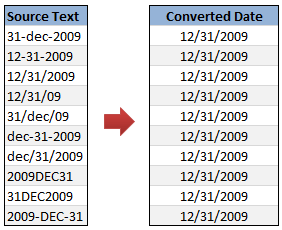
Sometimes when we import data from another source in to excel, the dates are not imported properly. This can be due to any number of reasons, including:
- The date format is different from one that is understood by Excel
- The data has some extra spaces, other characters before and after the date values.
- The dates are formatted for another country (or date system) and hence your version of Excel wont recognize them.
- The separator between date, month and year is not a known separator (e.g. 12=DEC=2009 instead of 12-Dec-2009), etc.
Below are some techniques you can use to quickly convert text to dates.
Technique 1: Use Text to Columns Utility
- First copy the source data and paste it in a text file (open Notepad and paste there).
- Now copy the values from text file and paste them in Excel.
- At this point, Excel will prompt you for using "Text to columns" utility (or Text Import Wizard as it is called in Excel 2007)
- Go to the Text Import Wizard (or Text to Columns dialog).
- Leave defaults or make changes in step 1 & 2.
- In step 3, select "Date" and specify the format of the date - like YMD, MDY, DMY, YDM, MYD or DYM. It doesn't matter what is the format of source date, month or year is. Excel can smartly understand them.
- Click "Finish".
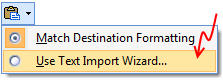
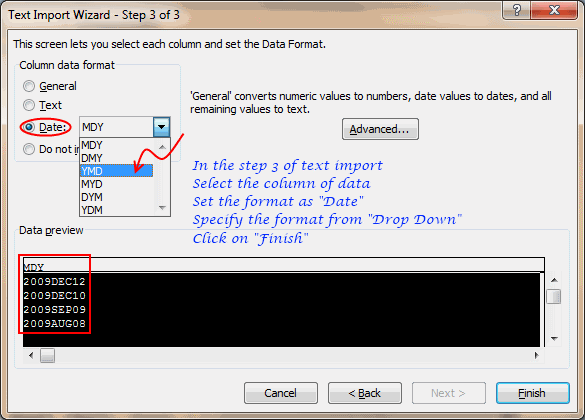
That is all. Your text dates are now converted to excel understandable dates.
Technique 2: Using Formulas to Convert Text to Dates
- Paste the data in a column (say "A")
- Now depending on the format of source data, write one of the below formulas to convert text to dates.
Using DATEVALUE formula
DATEVALUE formula tells excel to fetch the date from a given input. It is a smart formula capable of converting dates stored as text to excel understandable date format. To convert a text in cell A1 to date, you just write =DATEVALUE(A1)
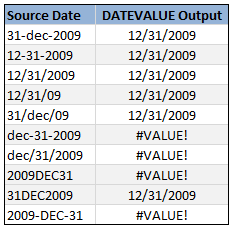
However, DATEVALUE formula has some limitations. It cannot process all types of dates. For e.g. I have shown a few sample dates along with corresponding DATEVALUE output.
Readjusting Date Text so that it works with DATEVALUE formula
Whenever possible, your next best option is to re-adjust the source data text so that it can be understood by DATEVALUE formula. Here is an example.
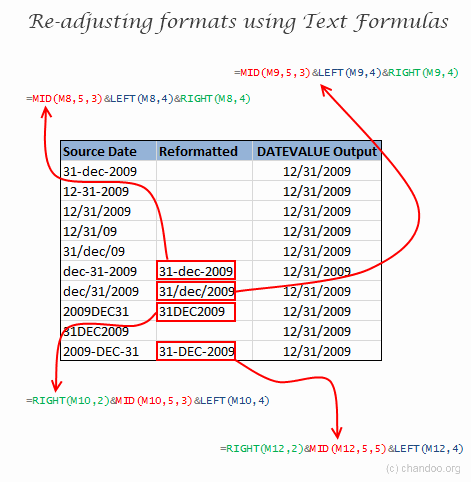
We can use the text formulas like LEFT, RIGHT and MID to extract portions of the date text and then regroup them using & operator to create meaningful date text format that would be understood by DATEVALUE formula.
Technique 3: Using DATE formula to Convert Text to Dates
If your data has separate columns for date, month and year, you can use DATE formula to convert the data to dates like this:
=DATE(year,month,day)
For eg. =DATE(2009,12,31) will give the date 31st December, 2009.
Techinque 4: Using TEXT formula
If you want to convert excel dates to text values (for your report or some other purpose), you can use the TEXT formula like this:
=TEXT(A1,"DD-MMM-YYYY")
will convert date in Cell A1 to DD-MMM-YYYY format. You can pass any other date / time formats to TEXT formula as well.