Type ¢, £, ¥, ®, and other characters not on the keyboard
Use the Character Map utility (available to almost all Windows-based programs)
Character Map is a utility included with Microsoft Windows operating systems and is used to view the characters in any installed font, to check what keyboard input (Alt code) is used to enter those characters, and to copy characters to the clipboard in lieu of typing them. The tool is usually useful for entering special characters.
Steps
- Click the Start menu, type charmap in the Search box, and press Enter.
Or, for Windows XP, Vista, and 7, click on the Start menu, then All Programs, Accessories, System Tools, and then click Character Map.
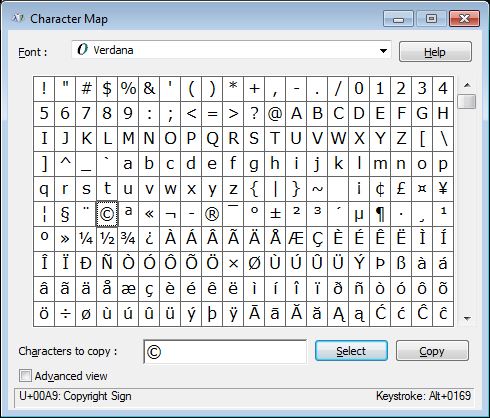
(See Figure 1) - In the Font box, select the font that contains the character you want
- In the character grid, click the character you want. Click Select.
Or, double-click each character you want. You can select multiple characters. The character(s) appear in the Characters To Copy box. - Click Copy
- Switch to your document, and then place the insertion point where you want to paste the character.
- Click Paste (or press Ctrl+V).
If the character looks different from the one you selected, select the character and apply the same font you selected in Character Map.
Tips
- Character Map shows the key shortcut you can use in Microsoft Excel or other programs to insert the selected character. If the key shortcut includes a number key, press the key you want on the numeric keypad, not on the main keyboard area.
- To magnify a character in Character Map, click it and hold down the mouse button.
- On some PCs, the Character Map may be in another location under Accessories or the Start menu.
- Character Map works only with Windows-based programs.
Insert a symbol or special character
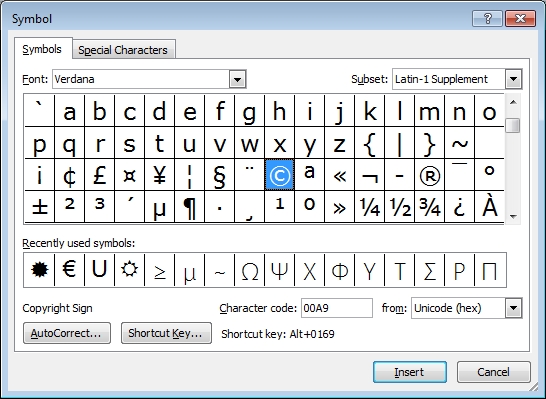
You can use the Symbol dialog box (See Figure 2 below) to insert symbols, such as ¼ and ©, or special characters, such as an em dash (—) or ellipsis (…) that are not on your keyboard, as well as Unicode characters.
The types of symbols and characters that you can insert depend on the font that you choose. For example, some fonts may include fractions (½), international characters (Ç, ë), and international monetary symbols (£, ¥). The built-in Symbol font includes arrows, bullets, and scientific symbols. You might also have additional symbol fonts, such as Wingdings, that include decorative symbols.
Insert a symbol
- Click where you want to insert the symbol.
- On the Insert tab, in the Symbols group, click Symbol.
- Do one of the following:
- Click the symbol that you want in the drop-down list.
- If the symbol that you want to insert is not in the list, click More Symbols.
See Figure 2.
In the Font box, click the font that you want, click the symbol that you want to insert, and then click Insert.
- Click Close.
Insert a special character
- Click where you want to insert the special character.
- On the Insert tab, in the Symbols group, click Symbol, and then click More Symbols.
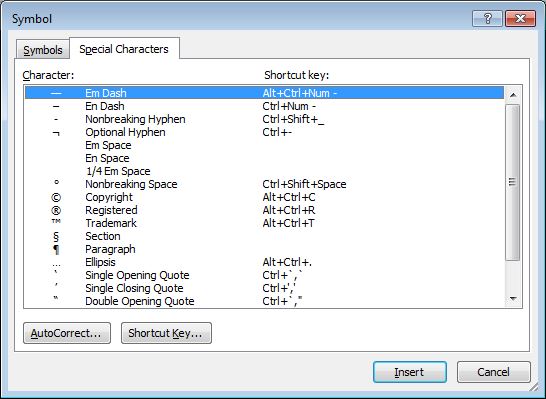
- Click the Special Characters tab. See Figure 3.
- Click the character that you want to insert, and then click Insert.
- Click Close.
Insert a Unicode character
You can insert a Unicode character into a document by selecting a character from the Symbol dialog box or by typing the character code directly in a document.
Select a Unicode character from the Symbol dialog box. See Figure 2.
When you select a Unicode character in the Symbol dialog box, its character code appears in the Character code box.
- Click where you want to insert the Unicode character.
- On the Insert tab, in the Symbols group, click Symbol, and then click More Symbols.
- On the Symbols tab, in the Font box, click the font that you want.
- In the from box, click Unicode (hex).
- If the Subset box is available, click a character subset.
- Click the symbol that you want to insert, and then click Insert.
- Click Close.
Use the keyboard to insert a Unicode character code in a document
If you know the character code, you can enter the code in your document and then press ALT+X to convert it into a character. For example, press 002A and then press ALT+X to produce *. The reverse also works. To display the Unicode character code for a character that is already in your document, place the insertion point directly after the character and press ALT+X.
Find a Unicode character code
When you select a Unicode character in the Symbol dialog box, its character code appears in the Character code box.
- On the Insert tab, in the Symbols group, click Symbol, and then click More Symbols.
- On the Symbols tab, in the Font box, click the font that you want.
- In the from box, click Unicode (hex).
- The Unicode character code is displayed in the Character code box.
Type character codes to create special characters
(Almost all Windows-based programs)
Steps
- Click where you want to insert the character.
- Make sure NUM LOCK is on
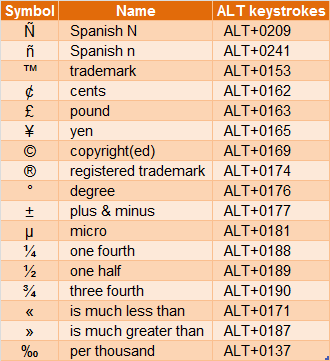
- Hold down ALT, and then, using the numeric keypad, type 0 (zero) followed by the character code. See Figure 4.
Tips
If you don't know the character code for a symbol or letter in a specific font,- Use the Symbol command on the Insert menu especially Word program. On the Symbols tab, click the symbol, and the shortcut key is shown beside the Shortcut Key button. See Figure 2 above.
- Look in Character Map's bottom-right corner. See the numbers after the words "Keystroke: Alt+". See Figure 1 above.
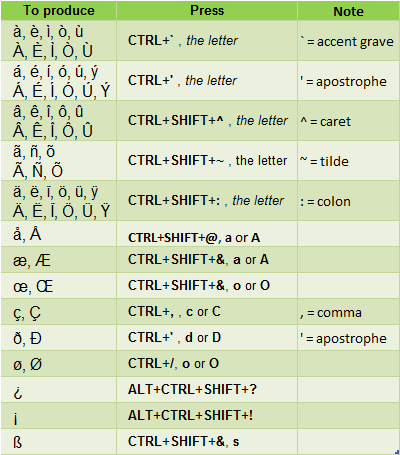
Type international characters
(Microsoft Word only)
See Figure 5.
Assign a symbol to a shortcut key
(Microsoft Word only)
Steps
- On the Insert menu, click Symbol.
- Click the tab with the symbol or character you want.
- Click the symbol or character you want.
- Click Shortcut Key.
- In the Press new shortcut key box, type the key combination you want to use.
- Click Assign.
Create arrows, faces, and other symbols automatically
(Microsoft Word only)
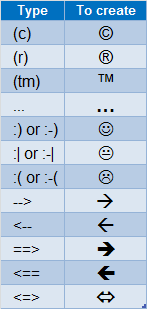
You can add the following commonly used symbols to your document by typing corresponding characters or character combinations.
For example, you can create by typing :) or :-).
See Figure 6 for more samples.
Notes
- You can remove AutoCorrect entries if you don't want to replace key combinations with symbols.
- You can add your own symbols or correct typing mistakes by clicking AutoCorrect.